

Только что обратил внимание на профили в HTTP cool, а конструктор из логики убрали...
The full guide to how the agent works in BAS
-
Prefer to watch? It's all in my YouTube video, it's available in English, Hindi and Turkish: the agent interface from 4:05, and how it works under the hood from 56:16
All the materials for the video are on my Telegram channel, come join: t.me/mustangbas
Plan
- The agent interface
- Two modes: Fast and Thorough
- How backups work
- How to check what the agent changed
- How to send the log to the developers
- How the agent works under the hood
- Writing code by hand in Code Editor
- Where the agent gets its info about modules
- What the agent can't do yet
- Conclusion
The agent interface
Let's start with the agent interface and how it's built overall. I put every feature it has on one diagram:
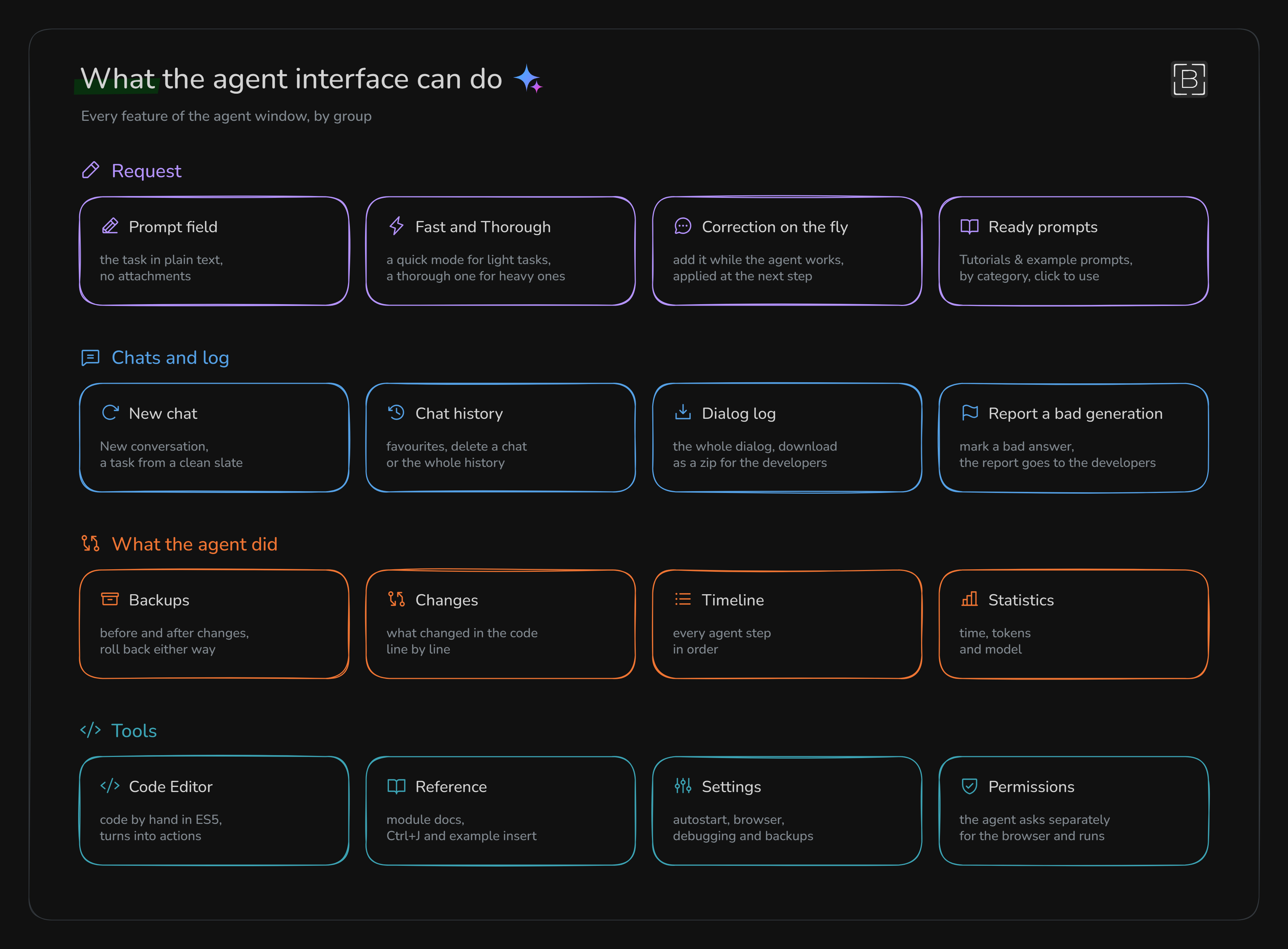
The start window has Tutorials & example prompts, and there's a really big set of ready-made prompts for all kinds of tasks. There's also a burger menu with a new chat, history, Code Editor and settings
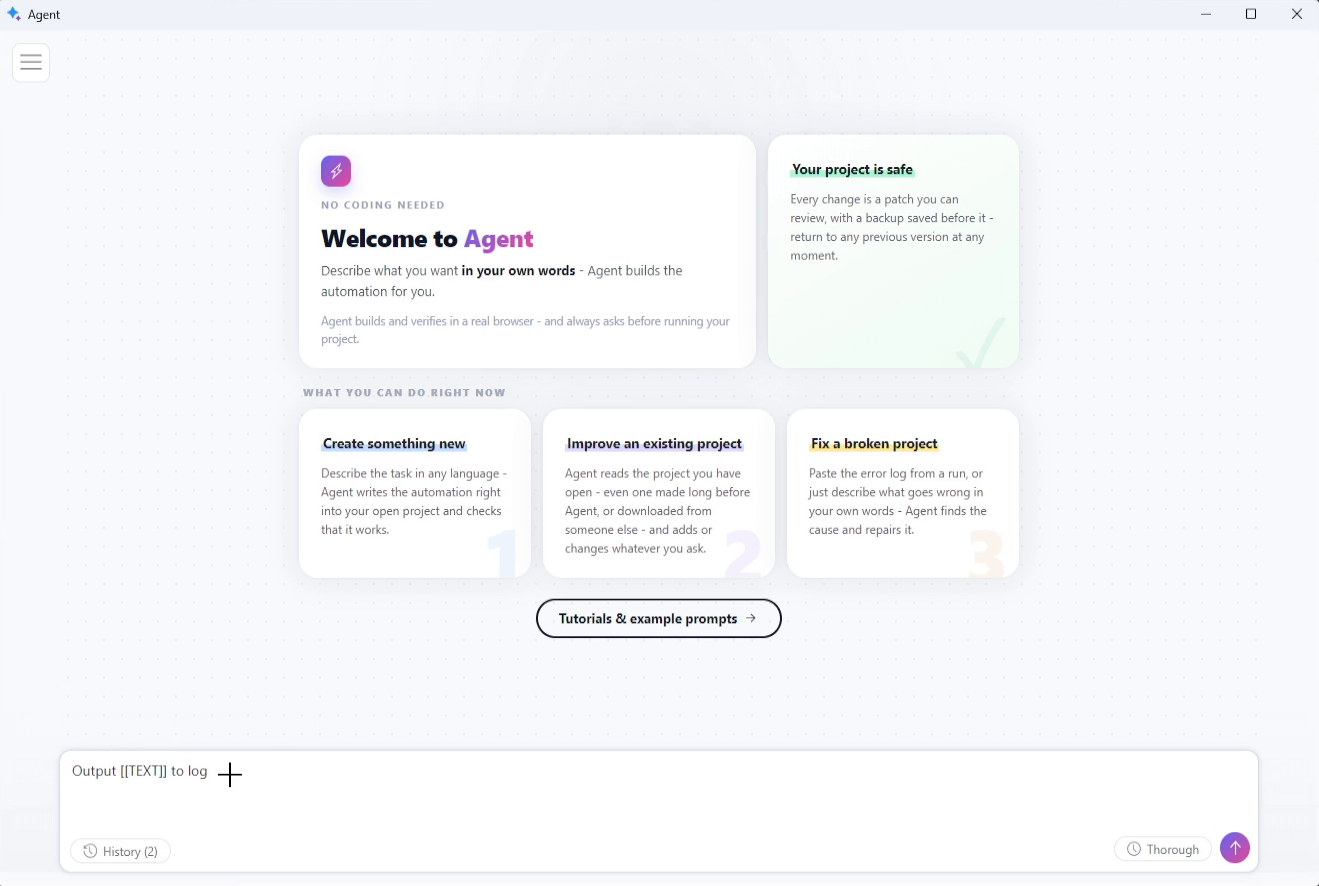
Two modes: Fast and Thorough

- Fast: here the agent doesn't check its work as carefully, doesn't go through the whole project and tries to give a result as quickly as it can. This mode is for quick and easy tasks that don't need any deep analysis
- Thorough: here the agent checks the project much more carefully, so the whole thing takes longer. This is the mode for heavy tasks that need more careful work: a project from scratch, some big new feature or big changes to the project. If the task is clearly at least medium difficulty, Thorough is the one to pick. I used it in about 80 or 90% of my requests
How backups work
The agent always makes a backup, even when I just asked it what it can do. In the chat these are separate lines with a file name, and a request with changes basically gets two of them:
- the backup before the changes: the project is exactly as it was before the request
- the backup after the changes: the project already has the agent's edits
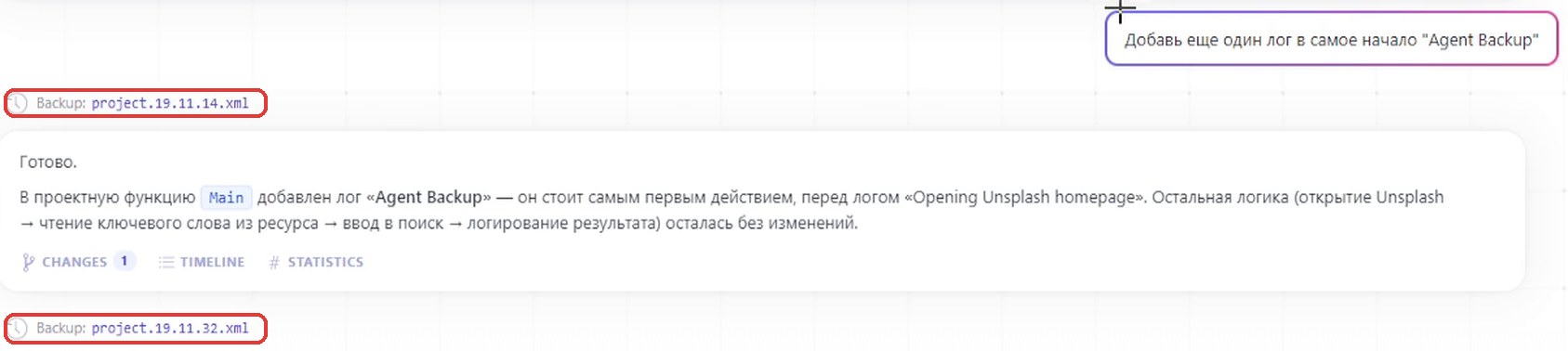
To roll back, click the backup line. BAS restarts the project, and the browser loses all its state. Then step by step:
- Click OK
- Press Enter in the resources window
- Wait for the project to start
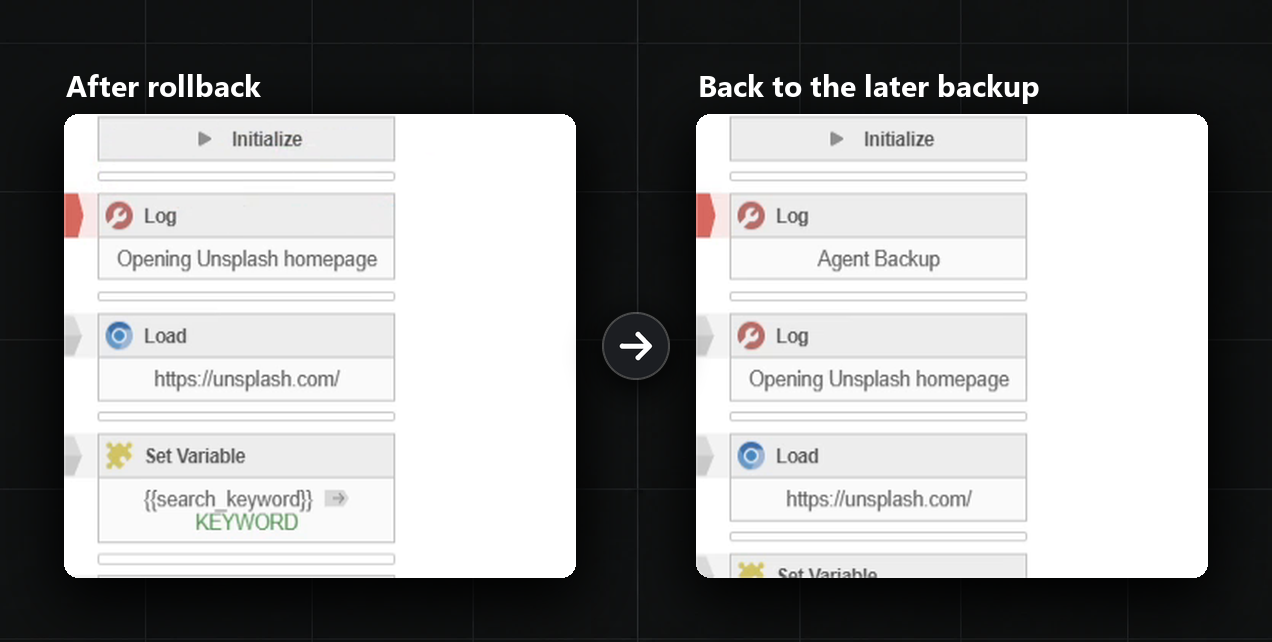
We can move between these two backups in both directions. I asked the agent to add an
Agent Backuplog at the very start and then checked how it actually works:- rolled back to the backup before the changes, and the log simply wasn't in the project anymore
- went back to the backup after the changes, and the
Agent Backuplog was right there again
How to check what the agent changed
Under every answer there are three tabs: Changes, Timeline and Statistics
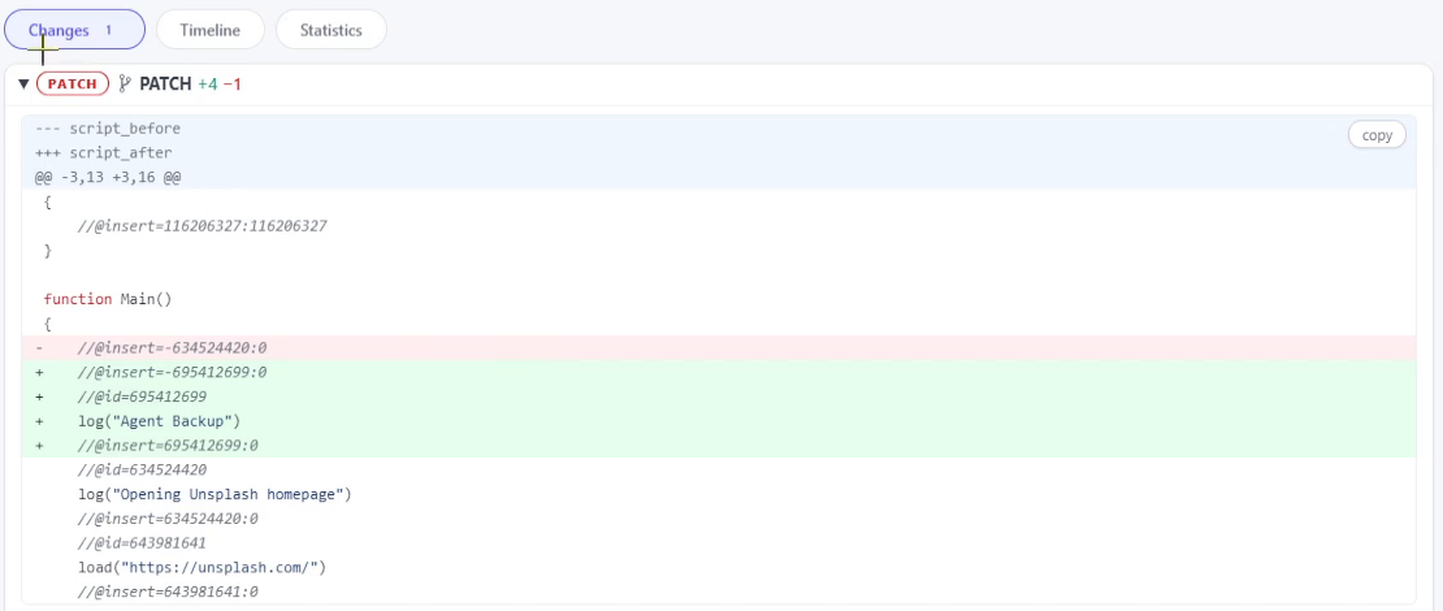
Changes shows exactly what the agent changed in the code, line by line: added lines in green, removed ones in red. In my case four lines were added and one was removed, and those lines are the new log in Main
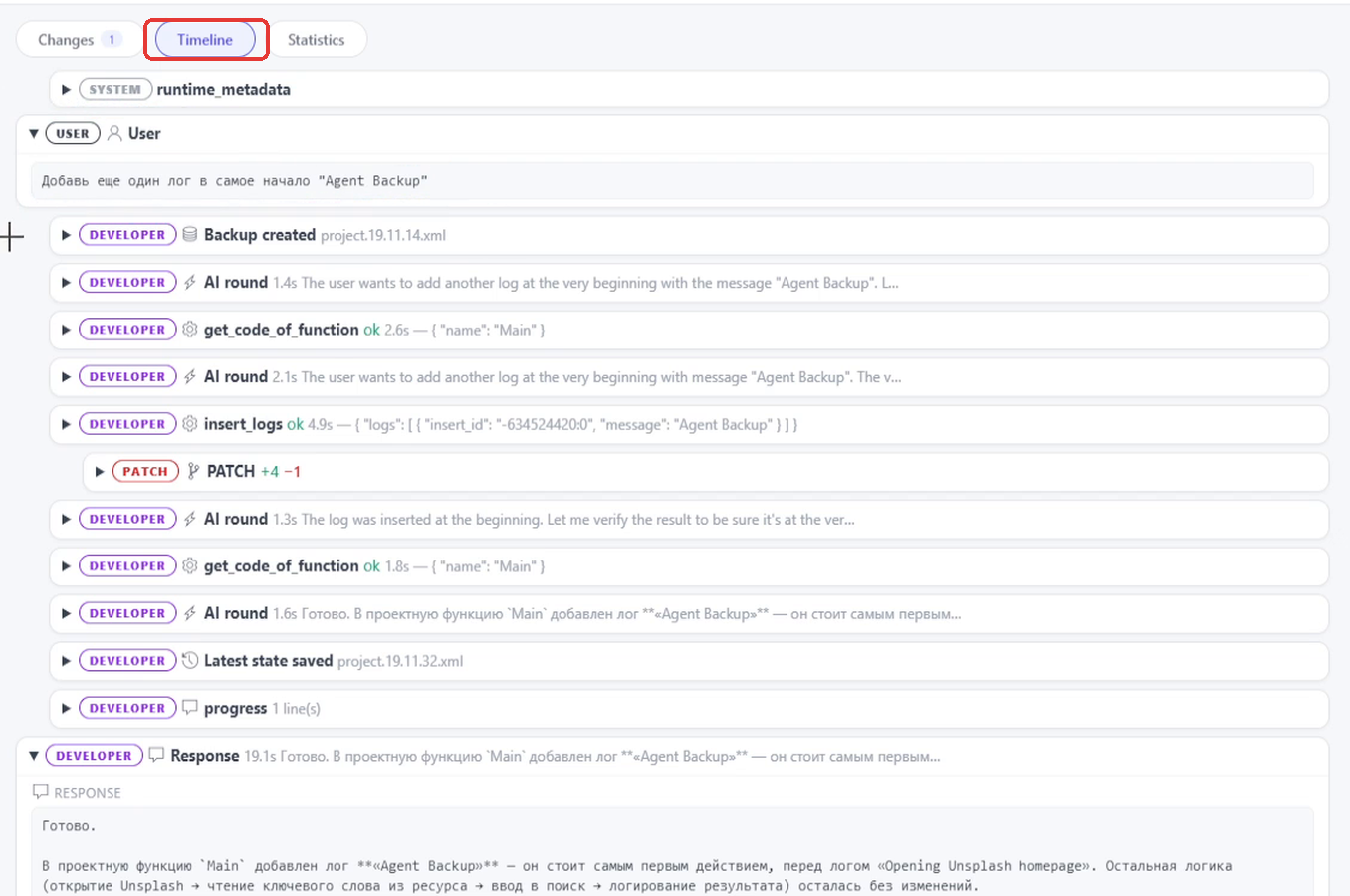
Timeline shows every step the agent took, in order:
- the request and the backup
- what the model decided
- which functions it looked at
- what edits it made
- what it answered in the end
For example, when the agent was fixing Rabby Wallet, there was a huge pile of tests. It really kept working until it fixed the error, and it did finish the project in the end
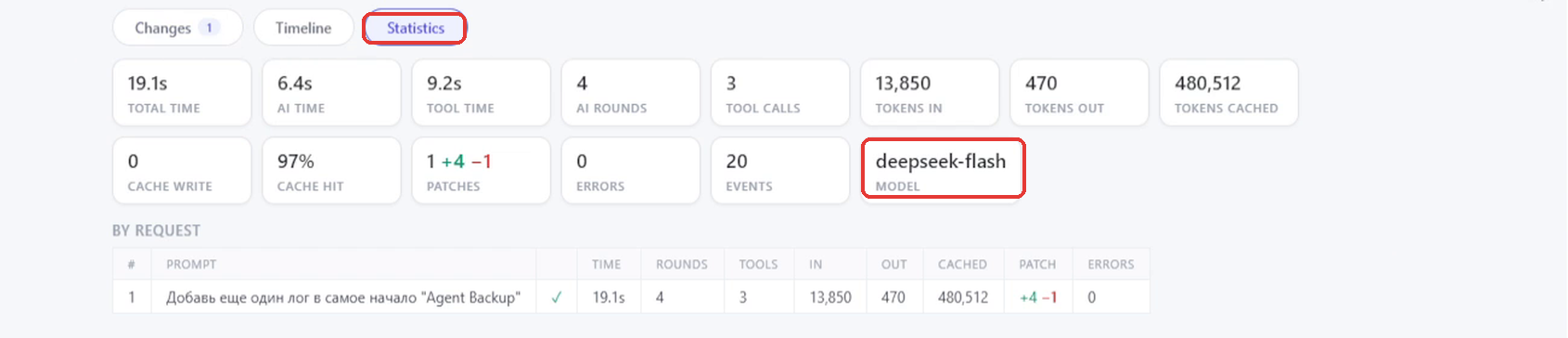
Statistics shows the time, tokens and model, and basically all the info about our requests
And if an answer came out wrong, it can be flagged with the Report a bad generation button, and the report goes to the developers
How to send the log to the developers
The log button opens the whole dialog, and it can be downloaded as a zip archive and sent to the developers if a bug turns up

How the agent works under the hood
By the way, if the agent's address https://ai.bablosoft.com:5500/ is opened in a normal browser, the same agent opens. So inside BAS it's built as a web interface. In a plain browser it just isn't connected to anything, knows nothing about a project and won't really answer a request
The agent itself doesn't make decisions. It basically passes the request and the project data to the developers' server:
- actions
- resources
- browser state
- logs
- and even backups
Then everything goes in a loop until the task is done:
- The server decides what to do next and basically hands the agent the next step
- BAS reads the project on the computer, changes it and runs it
- Whatever came out goes back to the server
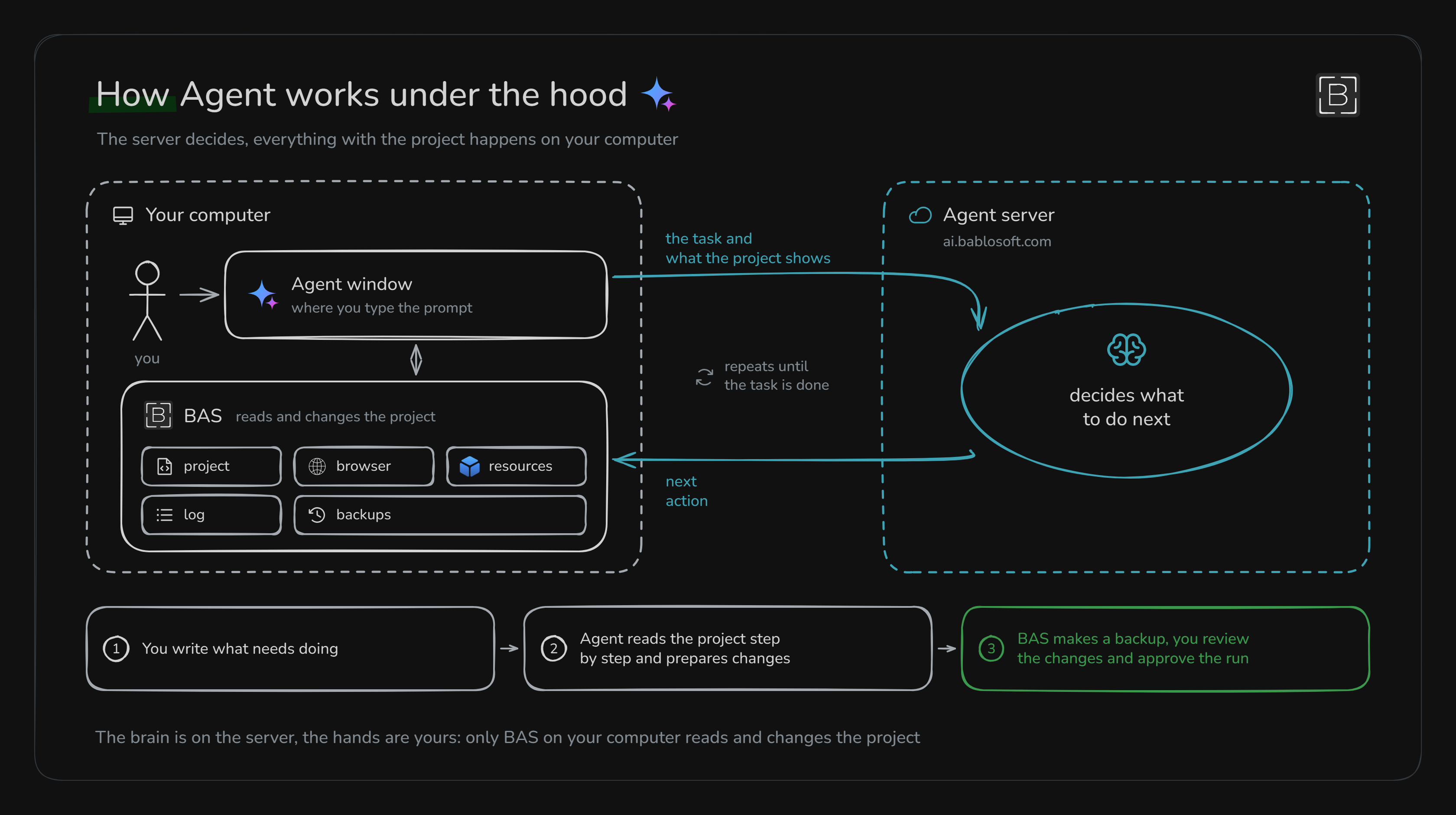
So the brain of all this work sits on the developer's server. What exactly happens there, we don't know. Most likely there are some skills and a system that decides what needs to be done and how, and talks to the agent
All of this is improved by the developer, and there's no way for us to put our own data or rules into the agent
And about money. The agent is completely free, nothing needs to be bought or connected for it. The developer pays for everything: they fully maintain the server, and the server is what solves all the tasks
Writing code by hand in Code Editor
Code Editor opens from the side menu, and it's a completely separate thing. Code here is written by hand, and the agent doesn't process it at all, it kind of has nothing to do with this window. After Accept code or Ctrl+Enter, BAS turns every function call into a normal project action
And this is, in short, not normal JavaScript at all. The developer spelled out in the editor header what's allowed and what isn't:
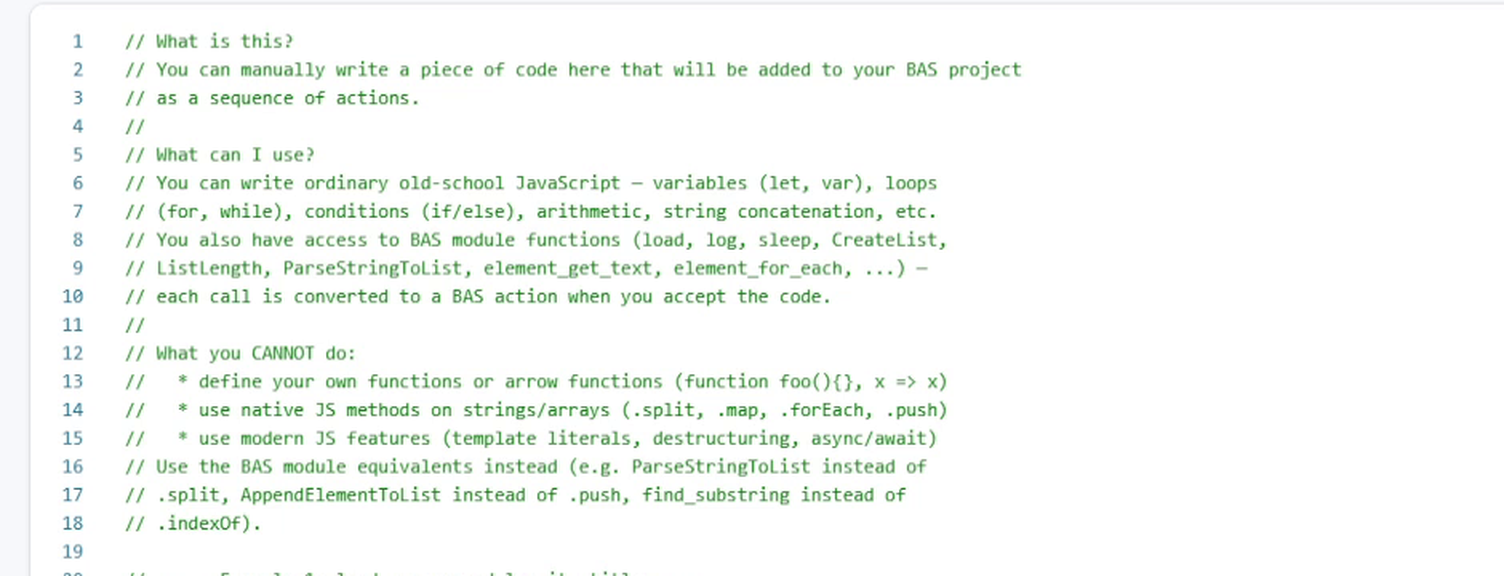
In short, it doesn't allow:
- declaring custom functions or arrow functions
- string and array methods, BAS functions basically take their place:
ParseStringToListinstead of.split,AppendElementToListinstead of.push,find_substringinstead of.indexOf - template strings or
async/await
The code has to be ES5, and if it's written in ES6, the editor just won't accept it. So if a neural network writes the code, it's worth giving it this header as context. I'd also add a separate note about ES5, because newer methods aren't supported here
By the way, the header lists
letamong the variables. That one is from ES6, so variables are declared withvarI pasted the developer's example as is, and the same actions showed up in the project: loading Google, a search, clicks on selectors
One more thing about comments. If a
//comment is written above a line, it becomes the action's labelWhere the agent gets its info about modules
Reference, also Ctrl+J, basically shows all the documentation for BAS modules
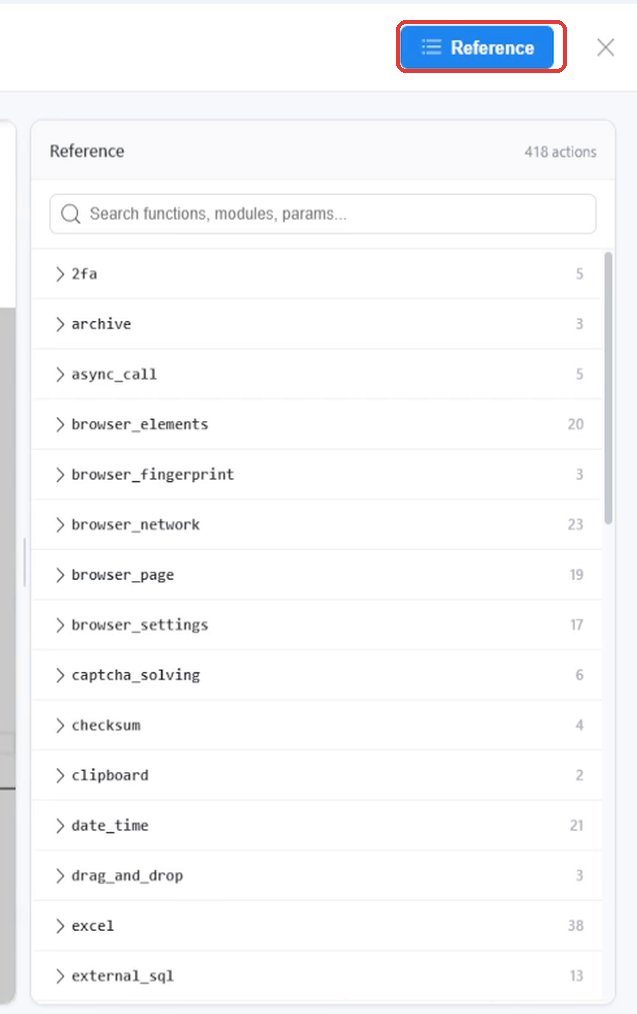
The agent relies on this documentation. It takes the module and action descriptions from here and uses them to build the project
And for Code Editor itself, every action here has its parameters, what it returns and examples, and the Insert into editor button pastes the example straight into the editor
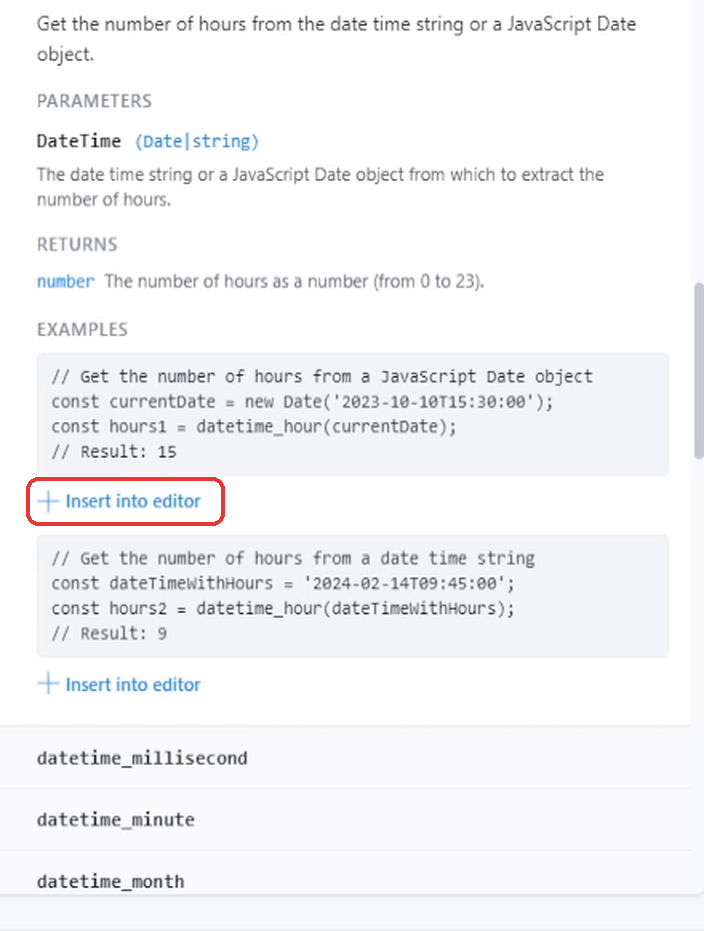
The agent sees custom modules too, by the way. Plus, if the agent wrote code with a module that isn't activated in BAS, BAS will offer to activate it
What the agent can't do yet
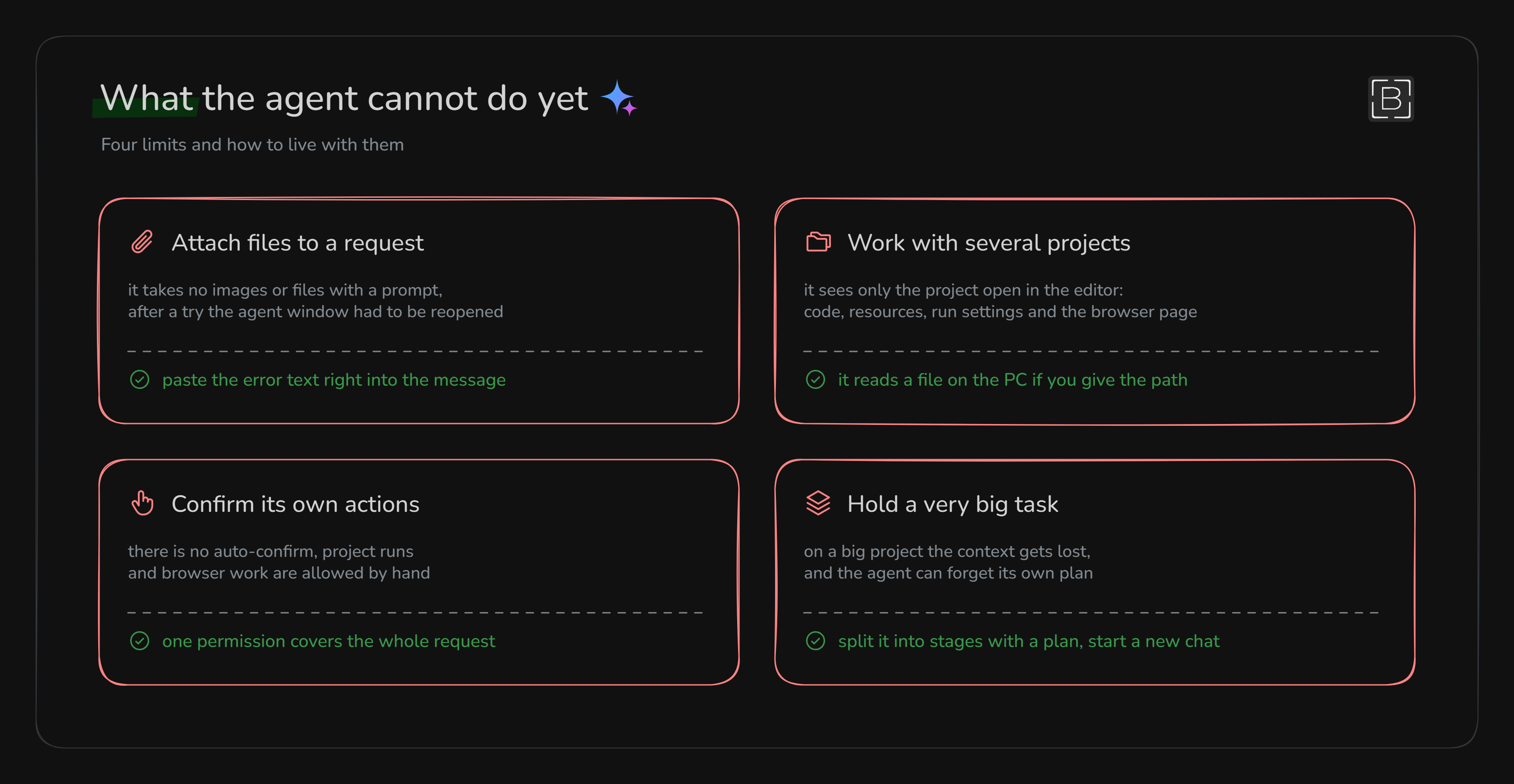
I tested attachments myself: I dragged a picture from my second screen right into the window, and the agent couldn't do anything with it, and after that I also had to close the agent window and open it again. I also asked it straight out about other projects, and it answered that it only sees the one that's currently open in the editor
Conclusion
Honestly, at first I thought the agent was still raw and would work badly in a lot of places. After the second project I already understood I was very wrong
So how it does in actual work:
- it builds logic pretty well overall, the only small problem is that it sometimes makes more blocks than needed
- it writes selectors well and handles dynamic sites fine too
- every project I worked with got done in the end. In the 6500-action project we didn't finish some tasks, I just didn't have much time
It's made really well, and the nicest part is that it's actually free. It costs nothing, we just write a prompt and it does everything
The downsides: it takes a while to finish tasks, and the model there isn't the very top one. But what does it matter if it's free and anyone can build their own scripts with it
In short, it's a really good tool. I'd tell everyone to move more toward neural networks and stop writing code by hand. It's better to write good prompts and give the agent as much background as possible, so basically it all comes down to writing a good spec
Sometimes it might be necessary to look something up and give it a hint on how to write the code. But all of that will get polished over time too
- The agent interface